Setup bufferline - Manage your buffers!
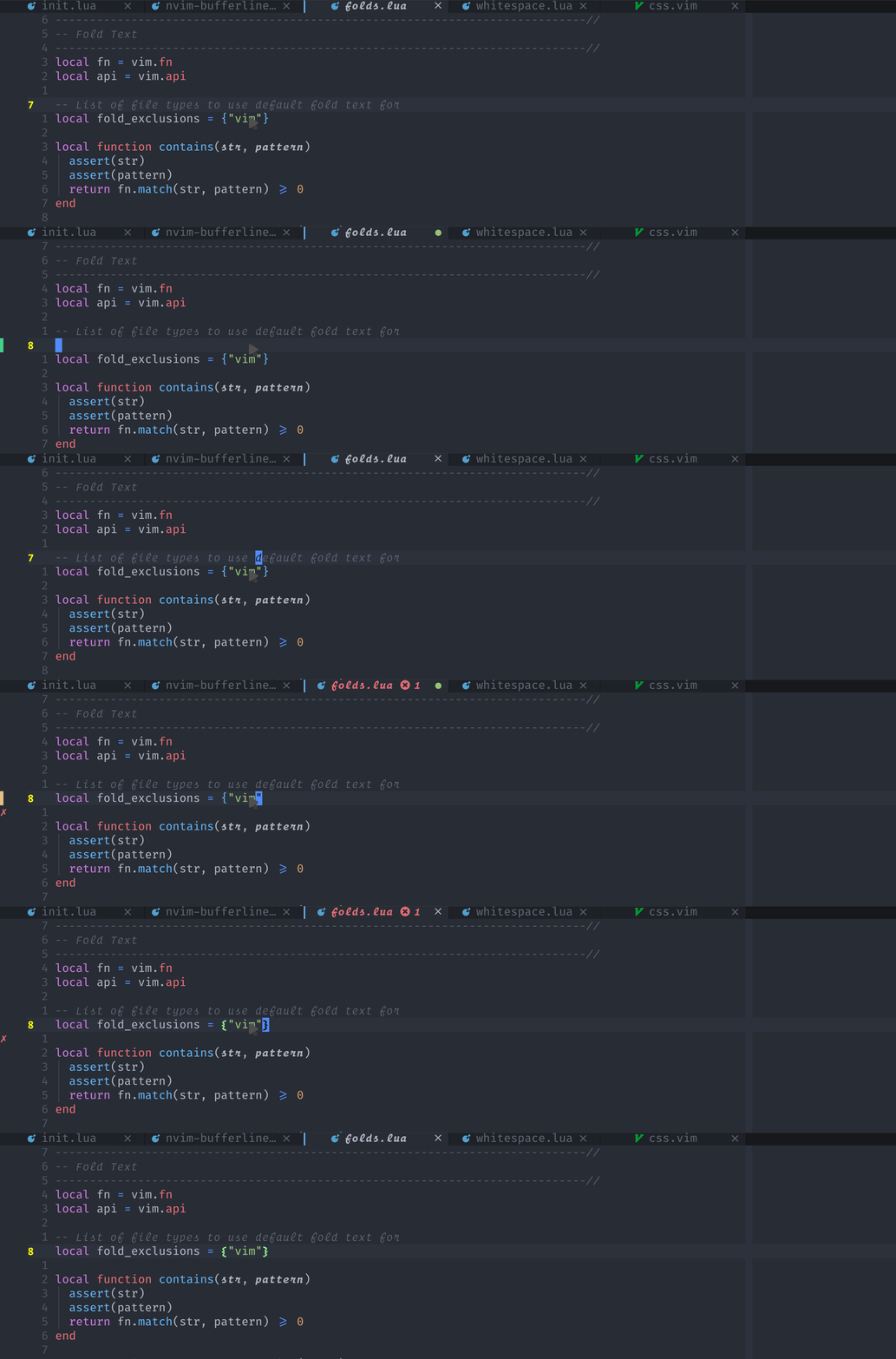 画面上部にある今開いてるバッファ一覧を表示してくれる。
また、各ファイルの状態(保存・未保存、コードにエラーがある、未コミット)を表示してくれる。
上の GIF では、保存x、未保存o、コードにエラーがあるとファイル名が赤くなり、エラー数を表示している。
- そもそもバッファーとは? -> Tips/buffers-windows-tabs
Setup
- Important
- これは設定の一例です。
- もっとかっこいいセットアップがbufferline.nvim - Featuresでたくさん紹介されています。ぜひそちらを読んでもっとかっこいいものを作ってください。
- また、OS によって異なる設定もあります
11-uiline-config/bufferline.lua
require("bufferline").setup({
options = {
-- | "ordinal" | "buffer_id" | "both" | f({ ordinal, id, lower, raise }): string,
numbers = function(_) -- opts
-- return string.format("%s", opts.ordinal)
return ""
end,
close_command = "bd %d",
right_mouse_command = "bd %d",
left_mouse_command = "buffer %d",
middle_mouse_command = nil,
buffer_close_icon = "",
modified_icon = "●",
close_icon = "",
left_trunc_marker = "",
right_trunc_marker = "",
max_name_length = 30,
max_prefix_length = 30,
tab_size = 12,
diagnostics = "nvim_lsp", -- | "nvim_lsp" | "coc" | none,
diagnostics_update_in_insert = false,
diagnostics_indicator = function(_, _, diag, _)
return (diag.error and " " .. diag.error .. " " or "")
.. (diag.warning and " " .. diag.warning or "")
.. (diag.info and "" .. diag.info or "")
.. (diag.hint and "" .. diag.hint or "")
end,
show_buffer_icons = true,
show_buffer_close_icons = true,
show_close_icon = false,
show_tab_indicators = true,
persist_buffer_sort = true,
separator_style = "slant",
enforce_regular_tabs = false,
always_show_bufferline = true,
sort_by = function(a, b)
-- sort by modified time (newer to left)
local mod_a = vim.loop.fs_stat(a.path)
local mod_b = vim.loop.fs_stat(b.path)
if mod_a == nil and mod_b == nil then
return a.filename > b.filename
elseif mod_a == nil then
return true
elseif mod_b == nil then
return false
end
return mod_a.mtime.sec > mod_b.mtime.sec
end,
},
})Keybind to Navigate Through Buffers
このプラグインの表示列で隣のバッファに移動するコマンドが提供されています。
自分でキーバインドにマップしましょう。以下のコードを上の setup のあとに追加してください。
<leader> + [1-9]- 今見えてるバッファの中で左から $n$ 番目に移動する
H: 左,L: 右のバッファに移動する
vim.cmd([[
nnoremap <silent><leader>1 <Cmd>BufferLineGoToBuffer 1<CR>
nnoremap <silent><leader>2 <Cmd>BufferLineGoToBuffer 2<CR>
nnoremap <silent><leader>3 <Cmd>BufferLineGoToBuffer 3<CR>
nnoremap <silent><leader>4 <Cmd>BufferLineGoToBuffer 4<CR>
nnoremap <silent><leader>5 <Cmd>BufferLineGoToBuffer 5<CR>
nnoremap <silent><leader>6 <Cmd>BufferLineGoToBuffer 6<CR>
nnoremap <silent><leader>7 <Cmd>BufferLineGoToBuffer 7<CR>
nnoremap <silent><leader>8 <Cmd>BufferLineGoToBuffer 8<CR>
nnoremap <silent><leader>9 <Cmd>BufferLineGoToBuffer 9<CR>

nnoremap <silent>L :BufferLineCycleNext<CR>
nnoremap <silent>H :BufferLineCyclePrev<CR>
]])
Issues and Pull Requests
このプラグインの作者の方はとても優しい人で、プラグインも開発も活発なので、問題があれば気兼ねなく Issue を立てるといいと思います。
Last updated on September 23, 2022